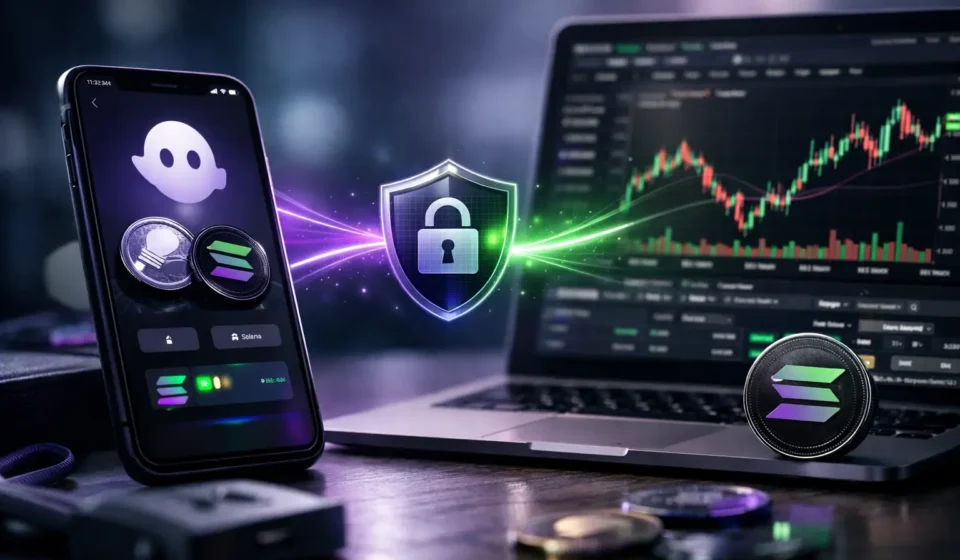

A wallet connection should take seconds. The safety checks behind it should take a little longer. If you are learning how to connect Phantom Wallet to a Solana trading panel, the rule is simple: connect your public wallet address, then manually review and sign every transaction inside Phantom.
That is self-custody in practice. Your wallet holds your assets. Your private key and recovery phrase stay private. The panel can show market data and prepare a transaction request, but nothing moves unless you approve it in your own wallet.
What connecting Phantom Wallet actually does
Connecting Phantom is not the same as logging into a bank account, giving a site control of your funds, or sharing your private key. A normal wallet connection lets a website see your public wallet address and, depending on the app, publicly available on-chain balances and transaction activity.
It does not give the site your seed phrase. It does not mean the app can quietly transfer SOL or tokens whenever it wants. Any real transaction, such as buying a token, selling a position, or approving a token-related action, should trigger a separate request in Phantom for you to inspect and sign.
That distinction matters on Solana, especially around fast-moving pump.fun launches. A connect request usually asks you to confirm that you own an address. A transaction request asks you to authorize on-chain activity. Treat those as two different moments with two different levels of attention.
Before you connect Phantom Wallet
Start with the official Phantom extension or mobile app. Do not install a wallet from a sponsored search result, a Telegram DM, or a random popup claiming you need an urgent update. Fake wallet extensions and cloned pages are built to capture recovery phrases.
If you are new to Phantom, create your wallet and securely back up its recovery phrase offline. Never paste that phrase into a website, a chat, a form, or a support ticket. No legitimate trading panel needs it. Anyone requesting it is trying to take control of your wallet.
You will also need a small SOL balance to cover network fees if you plan to transact. The required amount varies by activity and network conditions, so do not assume a wallet with zero SOL can complete a swap or purchase. Keep your trading balance separate from long-term holdings if that helps you manage risk and limit exposure.
For active memecoin traders, a dedicated hot wallet is often a practical setup. It is still your non-custodial wallet, but it contains only the funds you are comfortable using for high-risk on-chain activity. That is risk management, not a guarantee against loss.
How to connect Phantom Wallet step by step
Open the SolSniper website in the browser where your Phantom extension is installed. If you are using mobile, open the site through Phantom’s built-in browser when supported. Before clicking anything, check the domain carefully. Bookmark the correct page after you verify it so you are not hunting for it through search results every session.
1. Choose Connect Wallet
Find the Connect Wallet button on the panel. Select Phantom from the wallet options. Your browser extension or mobile wallet should open a connection prompt.
If Phantom does not appear, check that the extension is installed, unlocked, and enabled in your browser. A refresh may help, but do not install a second wallet extension from an unknown source just to force a connection.
2. Confirm the wallet address
Phantom will show the account you are about to connect. Verify that it is the address you intended to use. If you have multiple wallets or accounts, this is where you avoid connecting your long-term storage wallet by accident.
Approve the connection only after you recognize the website and the displayed address. Once connected, the panel should show a shortened version of your public wallet address. Seeing that address confirms the session is linked to your wallet, not that funds have been transferred.
3. Read any signature request before approving
Some apps request a message signature during login or connection. A message signature is commonly used to prove wallet ownership without creating an on-chain transaction. It should be readable and should not ask for your recovery phrase, private key, or an unexplained payment.
Do not blindly click approve because the request arrived through Phantom. Wallet prompts are a security checkpoint, not a formality. If the message is confusing, the domain looks wrong, or the request does not match the action you took, reject it and investigate before continuing.
4. Test the connection without trading
Once connected, take a minute to look around the interface. Check that the wallet address is correct, understand where balances are displayed, and find the disconnect option. You do not need to place a trade just because the wallet is connected.
A trading panel can surface a live feed and help you react faster, but speed should not replace verification. New token launches can move quickly, and they can also be illiquid, manipulated, abandoned, or malicious. A fast click is still your decision and your signature.
What happens when you make a transaction
After connecting Phantom Wallet, you may choose to initiate an action from the trading panel. At that point, the panel creates a transaction request and sends it to Phantom. Phantom shows the details for your review, and you decide whether to sign.
This is the key benefit of a non-custodial setup: the tool does not hold your funds or keep your private keys. You remain the final signer. If you reject the prompt, the transaction does not go through.
Read the prompt closely. Confirm the wallet account, the amount of SOL or tokens involved, and the destination or program interaction when it is shown. If a transaction appears to request more than you expected, cancel it. Re-open the panel from your verified bookmark and try again only after you understand the discrepancy.
Transaction details can be technical, particularly when programs, token accounts, and priority fees are involved. That does not mean you should ignore them. Start small when learning, avoid acting under pressure, and remember that a confirmed Solana transaction generally cannot be reversed.
Common Phantom connection problems
The most common issue is simple: Phantom is locked. Unlock it first, then return to the panel and select Connect Wallet again. If the extension opens but no prompt appears, refresh the page and confirm that the website has permission to interact with the wallet extension.
A stale session can also cause confusion. Disconnect from the panel, close the browser tab, reopen the verified site, and reconnect. If you have several browser profiles, make sure Phantom is installed in the profile you are actually using.
On mobile, connection issues often come from switching between apps. Using the in-wallet browser can reduce those handoff problems. If a request seems to disappear, do not repeatedly approve random prompts. Return to the wallet activity screen and verify exactly what is pending.
If the app shows a wallet address you do not recognize, disconnect immediately. Then review your Phantom accounts and browser extensions before reconnecting. A connection itself does not expose your recovery phrase, but using the wrong wallet can create avoidable mistakes.
Keep your wallet connection clean
Connecting is easy. Maintaining good wallet hygiene is the part that protects you over time. Use a unique browser profile for trading if you are active, keep your wallet software updated through official channels, and remove extensions you no longer use.
Watch for fake support accounts and fake verification flows. Real support does not need your recovery phrase, private key, or remote access to your computer. It also does not need you to sign an unrelated transaction to “fix” a wallet connection.
Disconnect from sites you no longer use, especially after testing unfamiliar apps. You can manage connected apps from within Phantom, but do not confuse disconnecting a site with reversing an approved transaction. Disconnecting ends the session. It does not undo actions already confirmed on-chain.
Memecoin trading is highly speculative. A clean setup, self-signing, and a fast live feed can give you more control over execution, but they cannot remove token risk, volatility, failed transactions, or rug pulls. Your wallet is your control center. Connect deliberately, read every prompt, and let no app make the final decision for you.